Valve’s new hardware is solid but might not justify its $99 price.
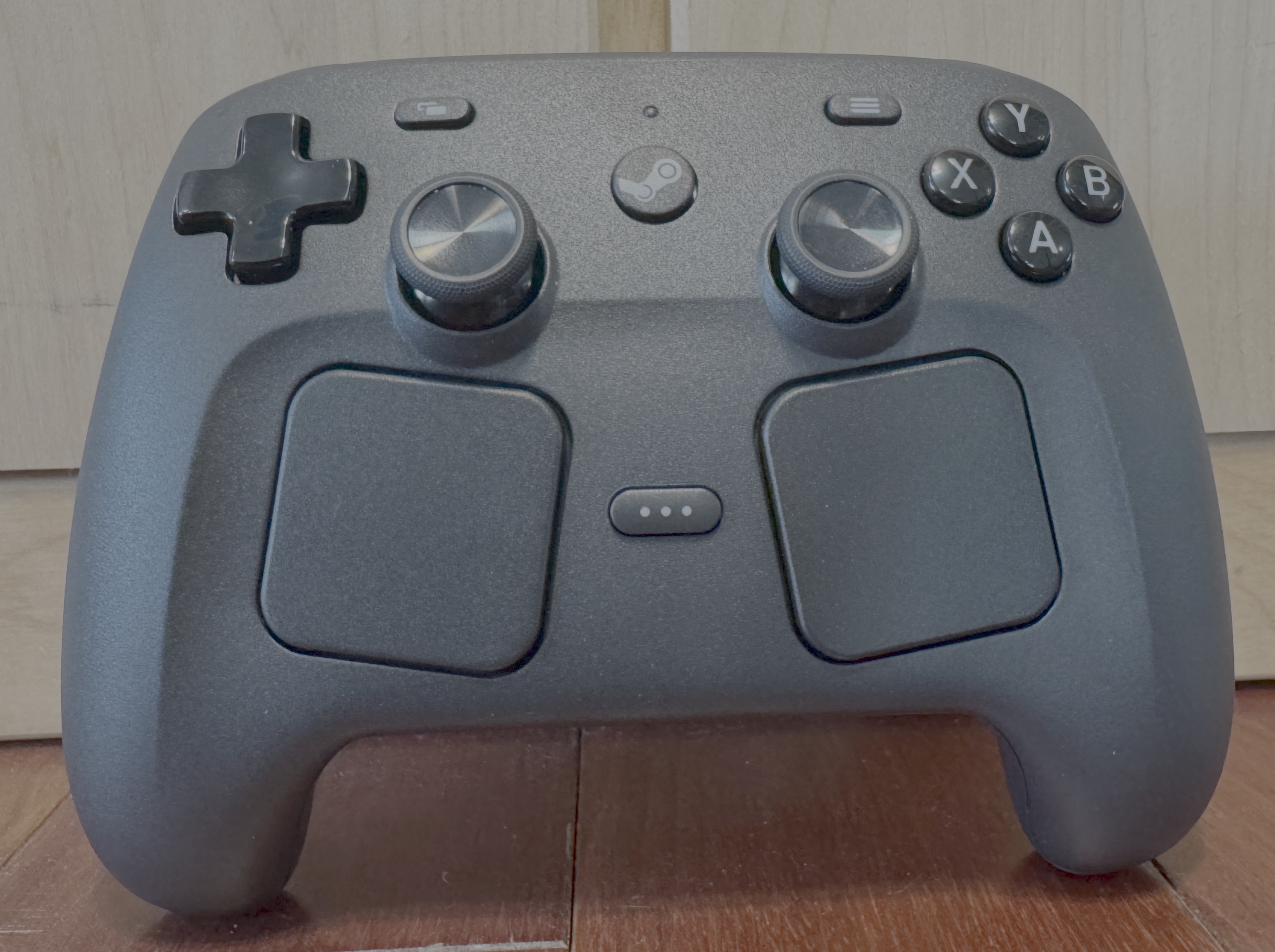
I am Steam Controller, second of his name! Credit: Kyle Orland
I am Steam Controller, second of his name! Credit: Kyle Orland
Since time immemorial, serious PC gamers have proselytized about the superiority of mouse and keyboard control schemes over the more input-limited handheld controllers used by most console gamers (and others). In recent years, though, many PC gamers have started keeping a spare Xbox controller (or similar) nearby for the increasing number of PC games designed primarily or exclusively with thumbsticks and buttons in mind.
Valve’s upcoming Steam Controller (not to be confused with the 2015 controller of the same name) is the Steam maker’s effort to replace those controllers with something more explicitly designed for the PC, and for the upcoming Steam Machine. After spending a few weeks with the controller, though, we’re not quite sure it sets itself apart from the competition enough to justify its high $99 asking price.
The rear buttons are pretty perfectly positioned for your middle and ring fingers to rest comfortably. Kyle Orland
Baseline quality
From the first time you hold a Steam Controller in your hands, it’s clear that this is a well-made piece of hardware. There’s a sturdy build quality to all the pieces that makes the controller feel solid in the hand, with just enough heft to feel substantial without being too heavy.
The controller’s matte finish provides a solid connection to the comfortable palm grips, which are angled to naturally position your thumbs easily over the thumbsticks and face buttons. And those buttons all have a nice, springy response, including four well-positioned programmable rear buttons and analog triggers with plenty of comfortable travel distance.
The Steam Controller has a rumble motor that can alternate between strong and subtle vibrations with equal utility, and magnetic TMR thumbsticks that should be less susceptible to the kind of drift inherent to sticks with physical contacts. And there are well-labeled and easy-to-access menu buttons to access in-game controls or system-level options in Steam.
As well-built as the controller is, though, this all feels a bit like table stakes in the modern controller market. These are the kinds of features you would expect from any decent first- or third-party controller that you would even consider buying these days. To justify itself, the Steam Controller needs something to set itself apart from the crowd.
Padding things out
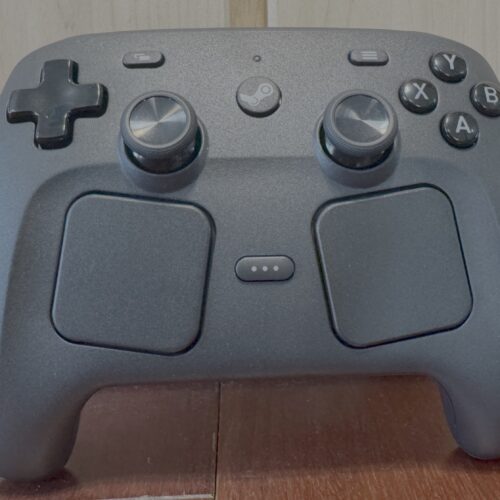
The most obvious additional features on Valve’s new controller are the dual touchpads sitting just below the thumbsticks. These should feel familiar to anyone who has used the similar touchpads on the Steam Deck, though the ones on the Steam Controller are tilted inward just a bit to match the angle of your thumbs when holding your hands close together.
As with the Steam Deck version, the touchpads here are most useful as a replacement for the mouse in the many PC games that still aren’t designed with handheld control schemes in mind. You can slowly move your thumb across the surface for precise pointer control or do a quick flick to quickly move a pointer across an entire screen in a satisfying motion that slowly loses momentum before coming to a complete stop.
In either case, the controller responds with a set of delightful, subtle clicks that make it feel like a weighted trackball is hidden inside. This understated audio and force feedback help give an almost subliminal feeling for how quickly the pointer is moving and really helps with precise positioning.
For games that require a lot of pointer manipulation, it’s definitely a huge improvement over analog sticks, which feel both too slow and too inaccurate for the intended purpose. And while the touchpads aren’t a perfect replacement for an actual mouse, they are a highly decent one when you are playing without easy access to a nice, flat mousepad-like surface.
The touchpads can even be set up to control the mouse on the Windows desktop, using one touchpad to move the pointer, the other for a scroll-wheel effect, and the shoulder buttons to click. It’s not the ideal Windows experience, but it can be handy for switching quickly to non-gaming apps without needing to take your hand off the controller.
I even found myself playing around with the touchpads in games that had thumbstick controls available. In first-person shooters, for instance, the touchpad can approach (but not quite match) the speed and precision of mouse-based aim, with momentum-based flicks for quick turning and more fine-grained thumb twiddling for small adjustments. While mastering this kind of aim takes some practice, it’s a revelation once you’ve got it down.
The Steam Controller also supports tilt controls with an internal gyroscope. These can be set to activate when your thumbs are detected on the stick or when your palms are sensed on the grips, limiting accidental tilting and freeing up the buttons you’d usually use to activate this mode.
Skate to the Puck
The Steam Deck’s other major point of differentiation from other controllers is what Valve is calling the Puck. This tiny oval connects to a PC or gaming handheld via USB-C cable and serves as a dedicated wireless receiver for the controller on its own wireless frequency.
While you can switch the Steam Controller to Bluetooth mode (for connecting to a console, say), using the Puck means avoiding all the fiddly pairing and slow-to-connect annoyances inherent to Bluetooth controllers. As soon as you plug in the associated Puck, the Steam Controller is instantly detected and ready to use.
Using the Puck also gives the Steam Controller an extremely strong wireless range that isn’t subject to interference from other Bluetooth traffic. In stress testing, I was able to get my PC to register Steam Controller inputs through two entire floors of physical obstructions at a distance of roughly 50 feet. That’s a huge upgrade from the Bluetooth mode on my PS5 controller, which struggles with a stable connection to my docked living room Steam Deck from just 15 feet away.
Valve claims 8 ms of latency when the Steam Controller is connected wirelessly via the Puck, a practically unnoticeable difference from the 6 ms of latency you can get with a wired connection. You can also hook up two Steam Controllers to a single Puck for convenience, or get a single controller to sync quickly with multiple Pucks on different devices (you switch by holding down a trigger during controller startup).
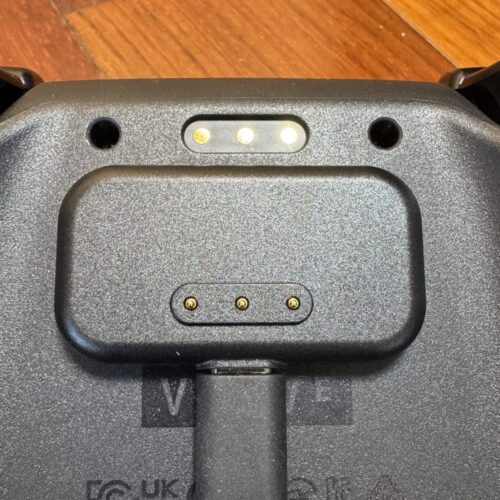
Finally, the Puck serves as the Steam Controller’s own convenient charging dock. Simply put the back of the controller near the top of the Puck, and it jumps up to connect magnetically with a satisfying click. While it’s nice to save the hassle of fiddling with a power cord, the Steam Controller’s advertised 35 hours of battery life means you don’t urgently need to plug it in after every session in any case.
What’s it worth to you?
All told, we’ve really enjoyed our time so far with the Steam Controller. It’s a solidly built device with some nice extra features that make it stand out from a sea of very similar controllers on the market.
For many players, though, those features won’t be enough to justify the $99 price. It’s hard to necessarily justify spending that much in a market where a first-party Xbox controller or high-quality third-party Bluetooth device can be easily found for half the price or less.
We’d only really recommend splurging on the Steam Controller if you’re planning to play a lot of mouse-based games from a more couch-friendly distance or if you find standard Bluetooth options don’t provide a good enough connection. In most other cases, buying two cheaper controllers for the same price is probably the better bet.

Kyle Orland has been the Senior Gaming Editor at Ars Technica since 2012, writing primarily about the business, tech, and culture behind video games. He has journalism and computer science degrees from University of Maryland. He once wrote a whole book about Minesweeper.