

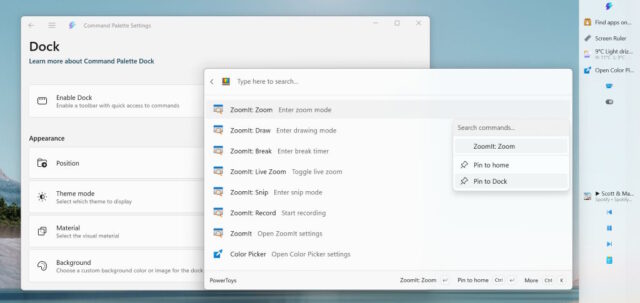
In a release that Microsoft says “brings your workflow front and center”, PowerToys v0.98.0 sees the arrival of a new Command Palette Dock and updates to many existing favorites.
For fans of Command Palette, the new Command Palette Dock is a real boon. It is, in Microsoft’s words, “a new optional mode that lets you keep your favorite commands and extensions always within reach”. If you choose to enable it, the Dock stays visible on your screen and provides quick access to the tools you use most.
There are lots of changes and tweaks throughout the utility suite, including a preview of a refreshed Keyboard Manager Editor experience. This we will return to.
New modules are always the highlight of a PowerToys release, so Microsoft has much to say about the Command Palette Dock:
You can position the Dock at the top, bottom, left, or right side of your screen and customize it to fit your workflow. To get started, open Command Palette settings and enable the Dock on the Dock page. From there, you can also adjust its position and appearance. By default, a few extensions are already pinned. To add more, open Command Palette, navigate to a command, and select Pin to Dock from the right-click or more actions menu. Pinned items will appear in the Dock, and you can rearrange or remove them by right-clicking the Dock and selecting Edit Dock, where you can drag items into the order you prefer.
If you want to explore even more functionality, be sure to check out the Microsoft Store or WinGet for additional Command Palette extensions! The Dock is currently in preview, and we’d love to hear your feedback as we continue improving the experience together with the community.
Sharing some detail about the updated Keyboard Manager Editor, Microsoft says:
This release introduces a new editor experience for Keyboard Manager. The UI has been rebuilt from the ground up using WinUI 3, making it easier for us to maintain and improve going forw
With the new foundation, we also took the opportunity to address feedback and rethink the editing experience. Instead of working across two separate windows, the new editor provides a single, unified view where you can manage both single key and shortcut remappings. A new editing dialog makes it easier to create remappings—whether you want to remap a key or shortcut, send text, or open an app or URL.
As part of this UI refresh, we also added individual toggle switches, allowing you to quickly enable or disable remappings without having to delete the entry. The new Keyboard Manager Editor can be enabled in Settings, and all your existing remappings should just work and carry over. As we love getting early feedback, we are keeping both editor systems in place while we improve the new experience. Give it a try and let us know what you think by filing bugs or feature requests on GitHub!
Alongside the new editor, you can now enable or disable Keyboard Manager using a shortcut or through the Keyboard Manager command in Command Palette. We also added support for multi-line input when sending text.
The recently added CursorWrap module sees a number of improvements including the handy option of a new activation mode that lets you wrap the cursor only while holding Ctrl or Shift.
You can check out the full release notes for PowerToys v.0.98.0 here. You can download the software from the same page, or via the Microsoft Store, or you can make use of the in-app updating option.


