
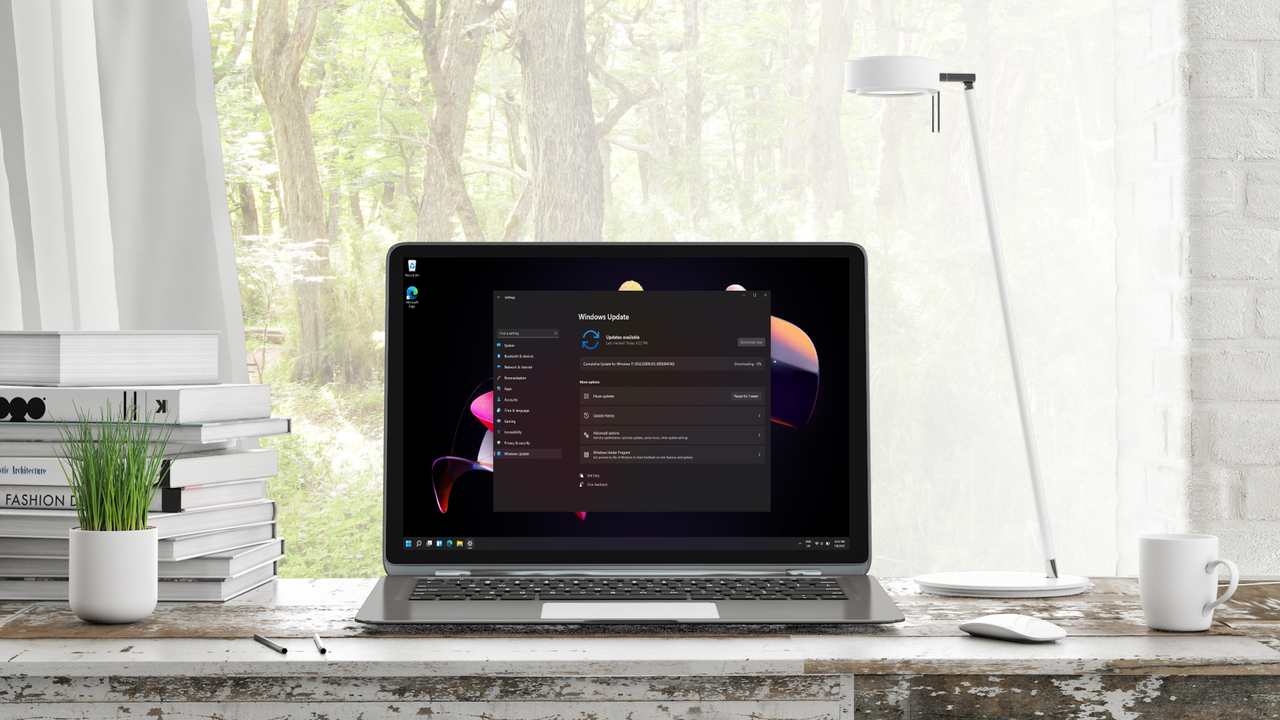
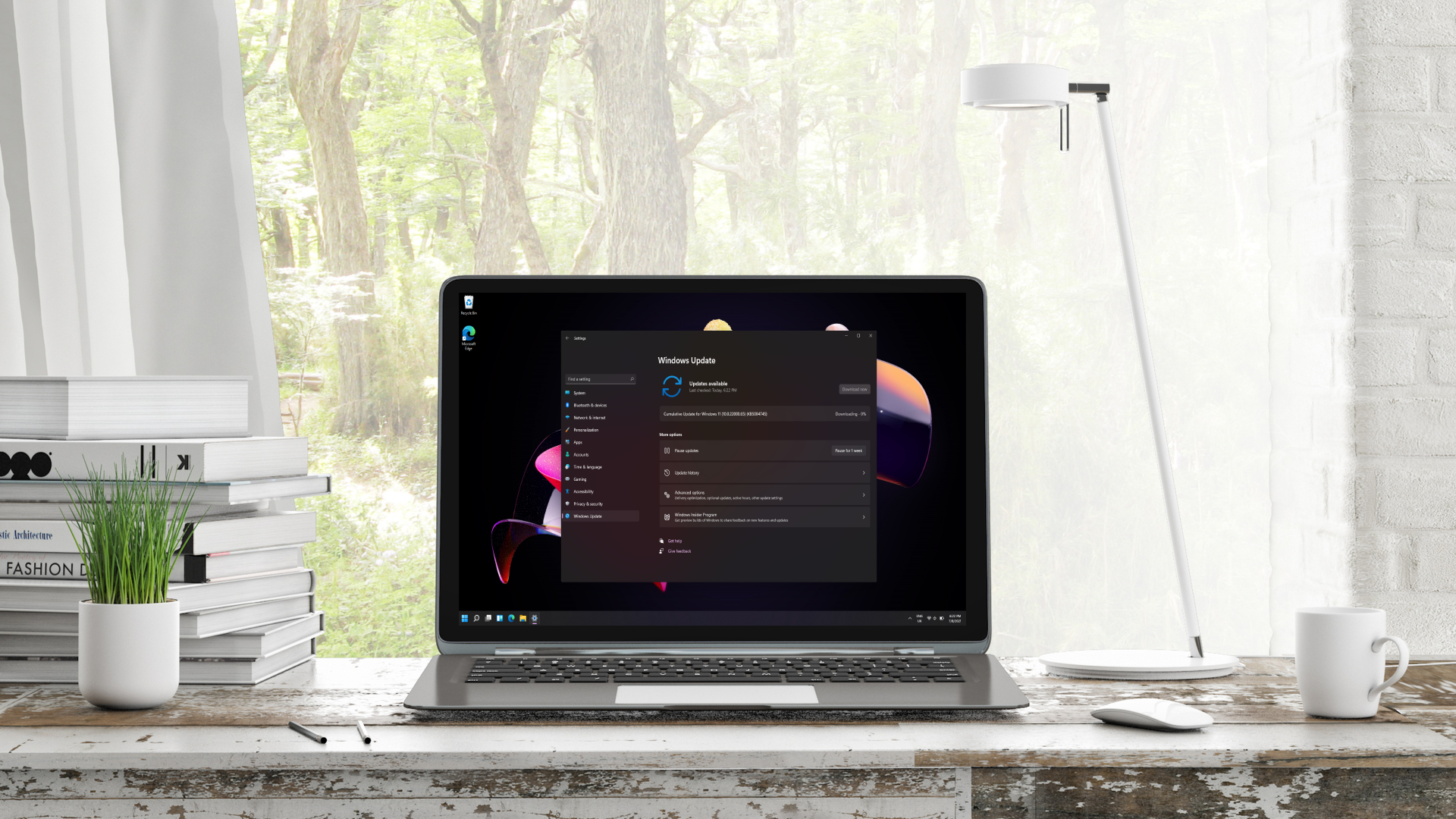
- Microsoft previously promised it would give users the option to pause Windows 11 updates for as long as needed
- The first work to that end has been discovered hidden in a preview build
- It’s still early days, but it’s a hopeful sign that this will be in testing soon
As part of its campaign to fix Windows 11, one of Microsoft‘s most important promises for me was giving users more control over Windows updates — and it’s now clear that this functionality will be arriving sooner rather than later.
Neowin spotted that regular Windows 11 leaker PhantomOfEarth posted on X to highlight a change with the option to pause updates for the OS, found lurking in the background (and enabled using a Windows configuration tool).
There’s now a button which pops up a calendar view, allowing you to specify a date until which updates will be halted. When that day is reached, updates will resume again, although as PhantomOfEarth notes, the limited availability of dates currently should be ignored, as this work is still in the very early stages.
Article continues below
The feature isn’t even officially out for testing yet, and is hidden in the most recent preview build that arrived in the Dev channel (though it’s likely in the Beta channel as well, the leaker notes).
What this does show, though, is that the move is being put in place, and we can hope that we might see the ability to pause updates in testing for Windows 11 perhaps this month or in May.
Analysis: here’s why this ability is so valuable
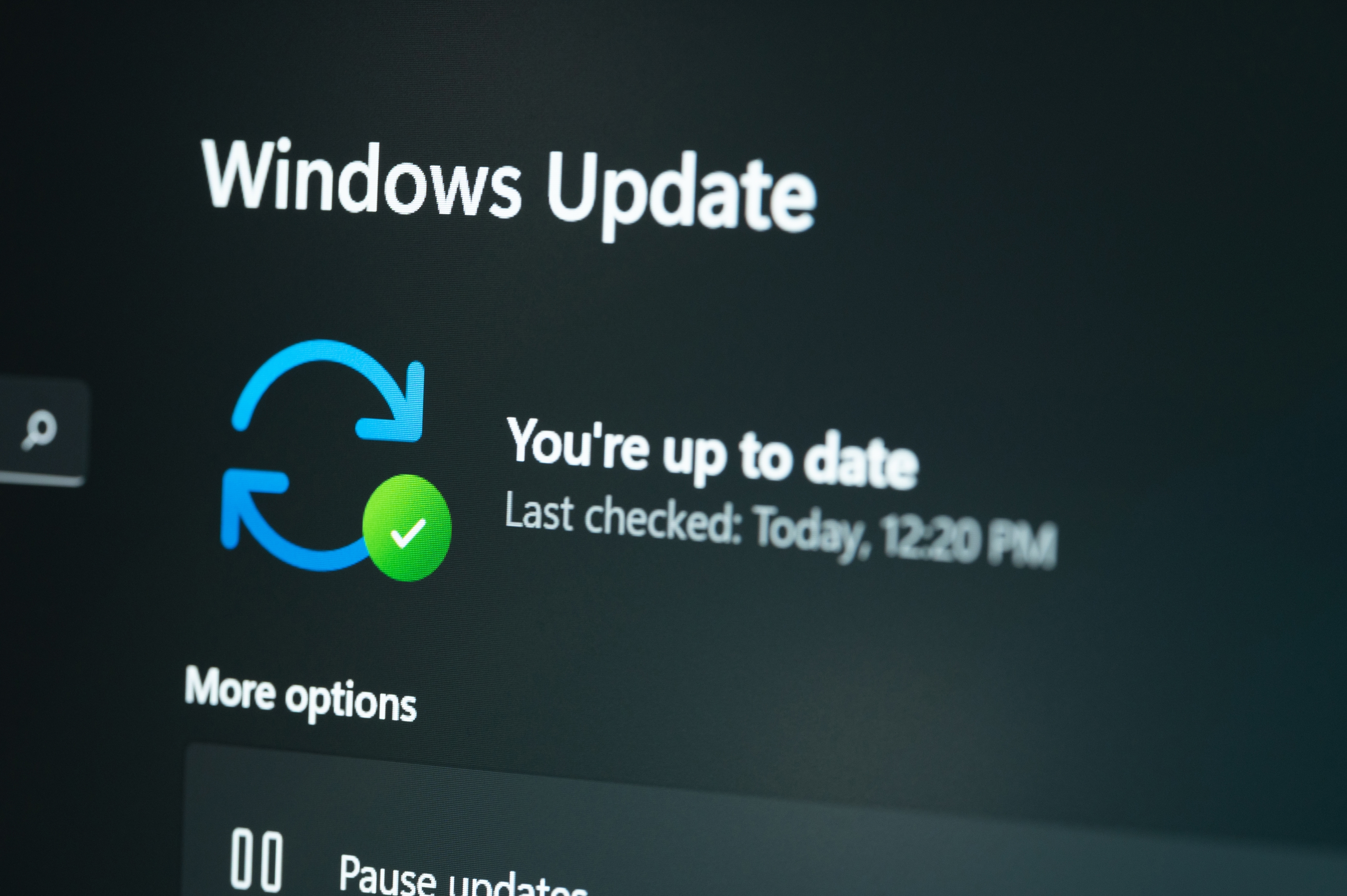
Pavan Davuluril, who heads up the Windows and Devices group at Microsoft, has previously promised that you’ll be able to pause Windows 11 updates for as long as needed in the future.
So, this would appear to be the first step towards that goal, with the calendar presumably allowing you to select any date you want, and any length of time you want to pause updates for. Well, unless as ‘long as you need’ has something of a time limit on it. (And I’m betting it will, but it’ll presumably be a lengthy period of a year or so, or six months at least — you can’t, and shouldn’t, hold off updating Windows 11 forever, of course).
If you’re thinking: why would you want to hold off applying an update? Well, it’s true that Windows 11’s monthly updates have security fixes that, in an ideal world, should be applied swiftly (as any vulnerabilities patched are at that point public knowledge, and more likely to be exploited). However, these cumulative updates also have bugs in them, as we’ve seen all too often in the past with Windows 11.
One scenario might be that, say, owners of a certain GPU, or maybe processor, are having serious trouble with an update and problems are reported across social media. Imagine if some of those reports include PCs failing to boot after the update. Now, in this case, you’d likely not want to run the risk of your system completely falling over in a nasty way like this, so you’d want to hold off on the update.
Right now, you can pause updates on Windows 11 Home, but only for five weeks. You can go longer with Windows 11 Pro (although doing so is a bit fiddly, via the Group Policy Editor), and you might want to do this on the Home version of the OS as well, if an issue is still being reported persistently. Microsoft is going to give those of us on Windows 11 Home that ability, and to do it easily – and rightly so, because if you’re nervous about an update for any such reason, you should be able to pause for as long as you want.
Of course, as noted, there is still a balance to be struck between pausing a worrisome update and not going too long without important security fixes, but that’s a choice for the user to make based on their assessment of the perceived risks. We shouldn’t be forced to install an update after a month of holding off, just because Microsoft says so.

Follow TechRadar on Google News and add us as a preferred source to get our expert news, reviews, and opinion in your feeds. Make sure to click the Follow button!
And of course, you can also follow TechRadar on YouTube and TikTok for news, reviews, unboxings in video form, and get regular updates from us on WhatsApp too.
” data-join-the-conversation-text=”Join the Conversation”>
You must confirm your public display name before commenting
Please logout and then login again, you will then be prompted to enter your display name.